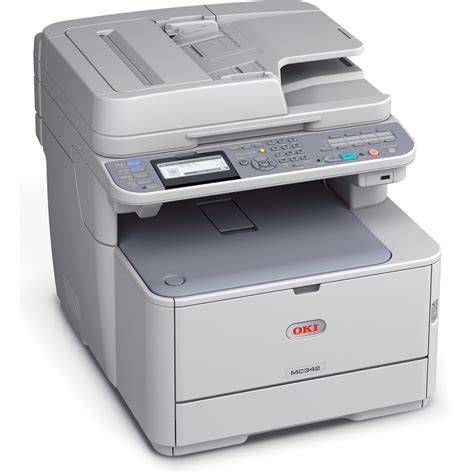
The OKI MC342dn is a versatile A4 color LED printer designed for small businesses or home offices with 1-5 users. It is an all-in-one solution for document management needs, offering color printing, copying, scanning, and mono faxing capabilities. To help users fully utilize its features and troubleshoot common issues, a comprehensive user manual is available.
Accessing Your OKI MC342dn User Manual
You can find the manual for the OKI MC342dn here, totally free. This manual belongs to the printers category and has been rated by 1 users with an average score of 5.9. The manual is currently available in the following languages: English. If you have a specific question about the OKI MC342dn or require additional help with your product, you can put your question there.
Key Specifications of the OKI MC342dn
Below you will find the product specifications and the manual specifications for the OKI MC342dn. This printer features LED print technology, which allows for professional-quality printing, copying, scanning, and mono faxing. It is built to handle a significant workload, with a maximum duty cycle of 30000 pages per month.
Performance Metrics
The MC342dn allows users to efficiently manage their printing tasks with impressive speeds. It boasts a print speed of 22 pages per minute for black and white documents and 20 pages per minute for color documents on A4/US Letter paper. The warm-up time for the printer is 60 seconds, making it efficient for quick printing tasks. For initial prints, the first page printing time for black and white is 8.5 seconds, and for color, it is 9 seconds.
When it comes to copying, the OKI MC342dn provides sharp and clear results with a maximum copy resolution of 600 x 600 DPI. The copy speed for black and white documents is 19 copies per minute, and it can produce a maximum of 99 copies at a time, allowing for efficient document reproduction. Additionally, the printer offers sharp and accurate scanning capabilities, allowing users to digitize their documents effectively. It can scan black documents at a speed of 30 pages per minute. The fax transmission speed of the OKI MC342dn is 3 seconds per page.
Paper Handling and Features
The printer comes equipped with a 350-sheet standard paper capacity, which includes a total input capacity of 250 sheets and a universal tray capacity of 100 sheets. The total output capacity is 150 sheets. It supports ISO A-series sizes such as A4, A5, and A6. The MC342dn also features PCL/PS printer language emulation, automatic duplex printing, and a reverse automatic document feeder. It offers one-touch copying functionality for simple and fast results.
Physical Dimensions and Display
Understanding the physical attributes of your printer can be important for placement and setup. The OKI MC342dn has a weight of 29000 g. Its dimensions are a height of 444 mm, a width of 427 mm, and a depth of 509 mm. The screen resolution of the display of the OKI MC342dn is 320 x 128 pixels.
| Feature | Specification |
|---|---|
| Print Technology | LED |
| Color Printing | Yes |
| Max Duty Cycle | 30000 pages per month |
| Black Print Speed (A4/US Letter) | 22 pages per minute |
| Color Print Speed (A4/US Letter) | 20 pages per minute |
| Warm-up Time | 60 seconds |
| Black Copy Speed | 19 copies per minute |
| Max Copy Resolution | 600 x 600 DPI |
| Black Scan Speed | 30 pages per minute |
| Fax Transmission Speed | 3 seconds per page |
| Standard Paper Capacity | 350 sheets (250 main, 100 universal) |
| Duplex Printing | Automatic |
Troubleshooting Common Printer Issues
The user manual and frequently asked questions (FAQs) often provide solutions to common operational challenges.
Paper Jams
If you encounter a paper jam, it is best to gently pull the paper out of the printer. Turn the printer off, and make sure that the printhead is not hanging over the paper and that no paper remains in the printer. Open the printer's front cover and carefully remove any jammed paper. Make sure to follow the instructions provided for paper removal, avoiding any excessive force. Once cleared, close the front cover and resume printing.
Poor Print Quality
There can be various reasons for poor print quality, including faded or blurry documents. Begin by checking the toner levels to ensure they are not low. If necessary, replace any depleted toner cartridges. Additionally, inspect the drum unit for any damage or dirt, and clean it if needed. Finally, adjust the print density settings in the printer's menu to improve print quality. With laser printers, calibrating the laser printer is recommended. For inkjet printers, they often require cleaning, as cartridges can dry out or the print head may be broken.
Cartridge Recognition Issues and Black Stripes
Non-genuine cartridges may not be recognised by the printer. In that case, you will receive a message that the cartridge is empty. The manual of the purchased cartridge usually contains the solution; if this does not work, it is advisable to contact the seller. If your inkjet printer has black stripes, in most cases, the inkjet printer cartridge is broken and the cartridge needs to be replaced.
Printer Not Turning On or Error Codes
Ensure that the power cord is securely plugged into the electrical outlet and the printer. Check if the power switch is turned on. If the issue persists, try using a different power outlet or contact customer support for further assistance. Error codes indicate specific issues with the printer. Check the error code displayed on the printer's screen and refer to the troubleshooting section of the manual for steps to resolve the particular error. If the problem persists, contact customer support for further assistance.
Connecting to a Wireless Network
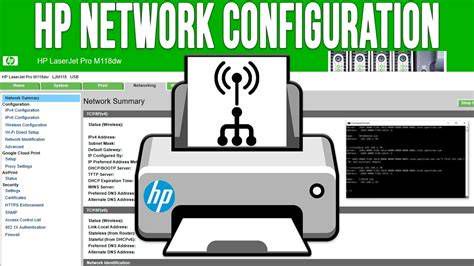
To connect your printer to a wireless network, access the printer's menu and navigate to the network settings. Select the wireless setup option and follow the on-screen instructions to connect to your network. Ensure that you have the correct network credentials, such as the network name (SSID) and password, ready before starting the setup process.
Understanding Printer Terminology
What does DPI stand for?
DPI stands for Dots Per Inch and is the number of ink droplets (per inch) that end up on the paper when printing.
What is the difference between a laser printer and an inkjet printer?
A laser printer prints with a toner and an inkjet printer prints with ink.